GuidePublished 9 min read
How to remove someone from a Telegram group, by hand or at expiry
Removing in the app, banning or letting the bot remove whoever didn't renew: what each path does and when the person can come back through the link.
 By LibertyBot TeamLibertyBot Blog
To remove a member from a Telegram group, you need to be the owner or an admin with the Ban Users permission. Open the group, tap the group's name at the top, find the person in the member list, open their options and choose the remove option (on Android, Remove from group). In a supergroup, anyone removed this way can't come back through an invite link until an admin takes their name off the Removed users list.
How to remove a member from a Telegram group in the app
On your phone
Open the group profile
Go into the group and tap the group's name at the top of the chat (on iPhone, also the group photo in the top corner). The screen that opens shows the member list.
Find the person
Scroll the list to the name of the person you want to remove.
Open the person's options
Tap and hold their name until the menu opens. If the menu doesn't open on your device, use the path through their message, just below.
Choose the remove option
On Android, it's called Remove from group. On iPhone, the name may differ. The person leaves right away.
Through the person's message. This also works for removing someone who just sent spam. Tap and hold one of their messages, choose Delete and check Ban user before confirming. The person leaves the group, just like with Remove from group.
On a computer
In Telegram Desktop, the option has the same name, Remove from group. Open the group profile, find the person in the member list and right-click their name.
The remove option doesn't show up?
You're not an admin, or your role doesn't have the Ban Users permission. The owner grants it, or an admin who can add admins. On Android, they open the group profile, tap the pencil in the top corner, go to Administrators, pick your name and turn on Ban Users. On a computer, the path is the three dots in the top corner, Manage group and Administrators.
Remove or ban: what's the difference
In supergroups and channels, removing someone in the app already works as a ban. The person leaves and their name goes on the Removed users list. On that list's screen, Telegram itself warns that users removed from the group by admins can't rejoin via invite links.
A basic group is the simplest type, up to 200 members, and there Telegram's documentation doesn't promise that block. The app turns a basic group into a supergroup on its own when an admin uses a feature only supergroups have.
To let someone come back, open the group profile, tap Edit (on Android, the pencil), then Permissions and Removed users, and take the person off the list. On a computer, the list is under Manage group. The person doesn't come back on their own: they have to join again through an invite link that still works.
A bot does the same with two actions: ban and unban. Banning removes the person and blocks them from coming back by link, like removal in the app. Unbanning allows them back, but doesn't put them in the group again. That's why, to remove someone without closing the door, the bot bans and then unbans right away.
| Action | Does the person leave? | Can they come back via invite link? |
|---|---|---|
| Remove from group, in the app | Yes | No, until they're taken off the Removed users list |
| Ban, by the bot | Yes | No, until they're unbanned |
| Ban and unban right after, by the bot | Yes | Yes, through a link that's still valid |
| Cancel (revoke) the invite link | No | Nobody else joins through that link |
The admin permission you need
- For you or someone on your team: an admin role with Ban Users turned on. The group owner already has every permission.
- For a bot that removes members: being an admin of the group or channel with the ban permission, which in a group is called Ban Users. The step by step is in how to add the bot to a group as an admin.
- For a bot that sends invites: the Invite Users via Link permission, which lets the bot create invite links.
For developers
In the Bot API, removing is banChatMember and allowing the return is unbanChatMember, with the bot as admin and the can_restrict_members permission. Unban only works in supergroups and channels and, by default, also removes from the chat anyone who's still there (only_if_banned prevents that). In a basic group, the documentation doesn't promise that a ban blocks the return by link. Canceling a link is revokeChatInviteLink.
How to remove a subscriber from a Telegram channel
In a channel, the path is similar. According to Telegram's FAQ, the channel owner can remove subscribers and appoint admins to help. Open the channel profile, go to the Subscribers list, open the person's options and choose the remove option (on Android, Remove from channel).
The rule for coming back is the same as in a supergroup: anyone banned from a channel can't join again by link until they're unbanned. To set up the channel, see how to create a paid channel on Telegram.
Automatically removing people who didn't renew
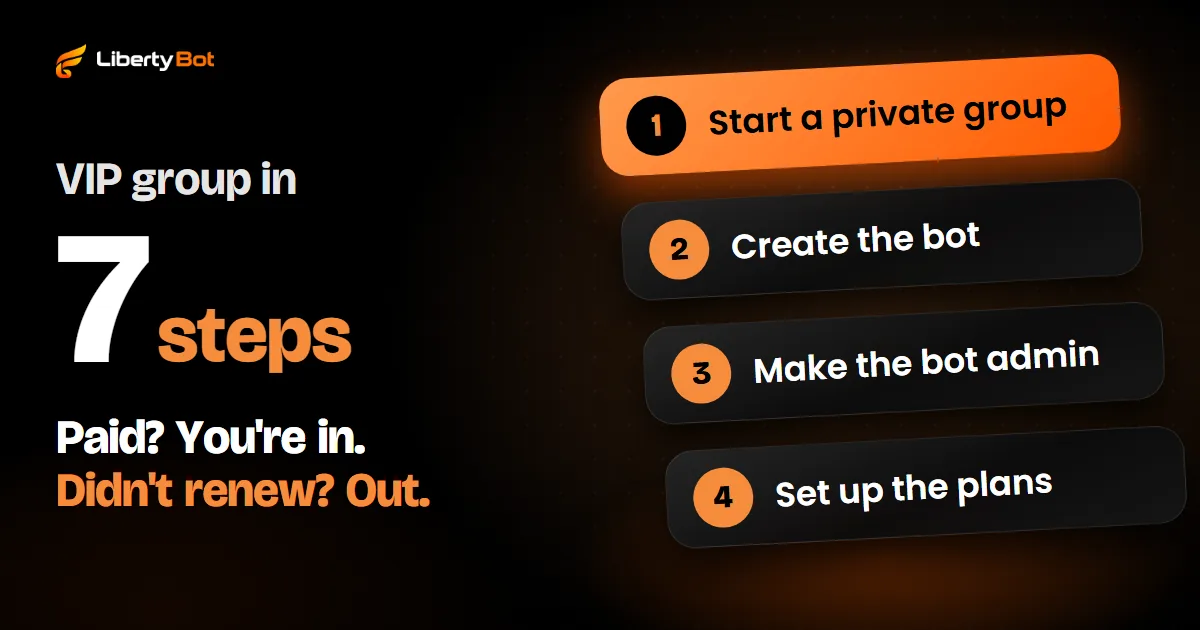
In a paid group, each person has an end date. Removing expired members by hand means checking the list every day, and anyone who gets forgotten stays inside without paying. An admin bot stores each access's expiry date and removes the person on that date.
It should ban and then unban right away: if it only bans, anyone who wants to renew later is blocked from the link. The guide how to create a VIP group on Telegram shows where this step fits in the rest of the setup.
How LibertyBot does it
LibertyBot is a Telegram sales bot. With the VIP Group/Channel delivery, the bot sends one link per purchase, with an expiry date, and access lasts for the length of the plan. A lifetime plan never expires, so nobody is removed.
It reminds the buyer before expiry
On one-time payments, by default, the bot reminds the buyer 3, 2 and 1 day before and on the last day, with the RENEW NOW button. You choose the days (14, 7, 5, 3, 2, 1 and on the day), the text and the media. Short plans get fewer reminders: a 1-day plan only gets the last-day one.
It removes the person from the group at expiry
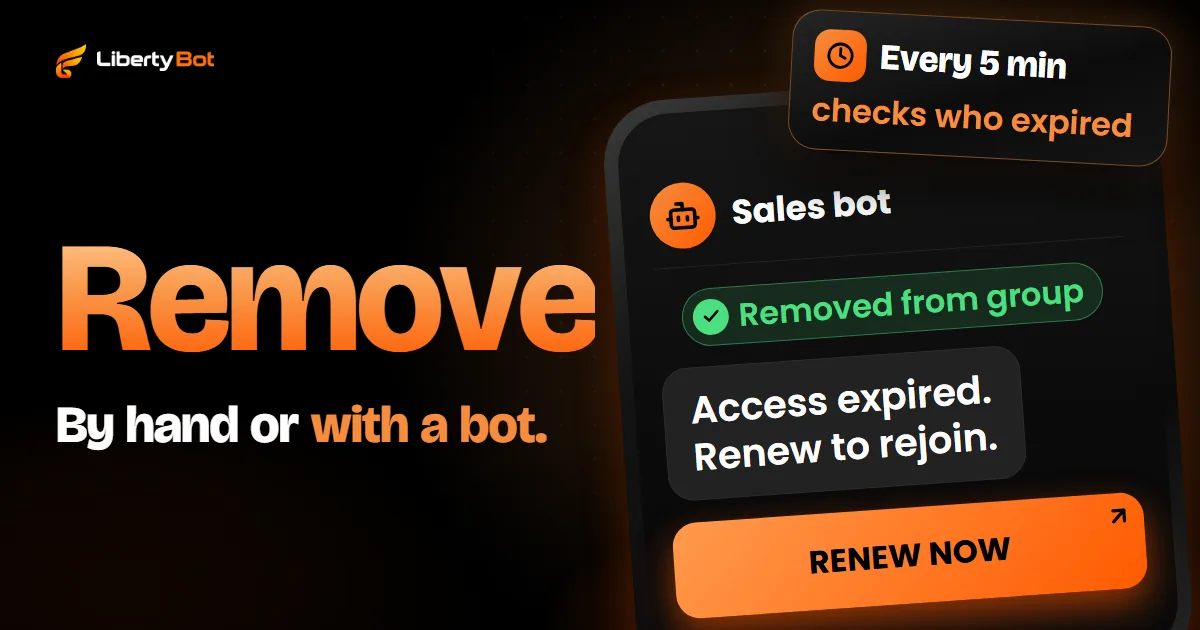
Every 5 minutes, the bot looks for expired access. For each one, it bans and then unbans the person and cancels their invite. They leave without being banned, off the removed list, and can come back with a new purchase.
It tells the buyer that access expired
The buyer gets the access expired message (the default one or yours) with the RENEW NOW button, when the purchase can be renewed. Anyone who renews after leaving gets a new invite. The reminders and this message come turned on, and you can turn each one off on the same screen.
- People who renewed early don't leave. If the person bought the same plan again before expiry, through RENEW NOW or a new purchase, the time adds up and the bot leaves them alone.
- On card with automatic renewal, nobody leaves while the charge goes through. Each approved charge extends access. If a charge fails, the person stays in the group for the plan's Grace period days (the default is 3) and then the bot removes them, as with any expiry.
- A removal that fails isn't marked as removed. If the bot can't remove the person, for example because it lost its admin role, the access shows as Failed in Access Control, so you can check it.
- Removal from the dashboard doesn't close the door. In the dashboard, under Customers > Access Control, the Remove from group button removes the person right away without leaving their name in Removed users, cancels the access and sends them the access revoked notice.
Buyers: remove them from the dashboard, not the app
Anyone you remove in the Telegram app goes to Removed users, and LibertyBot doesn't find out: in Access Control, the access stays Active until you tap Check status on Telegram. If that person buys again or gets the invite again, the link won't open for them while their name is on that list. If you already removed them in the app and they're coming back, take their name off Removed users first.
What you choose
- Remove from the group, in the flow editor's Subscription item, under Renewal System, Actions on expiry: it comes turned on. Turned off, anyone who expires stays in the group, but their invite stops working.
- Temporary Group instead of VIP Group/Channel: the person joins through a join request the bot approves on its own, and the bot removes them 5 to 300 seconds after they join (the default is 15). This delivery always removes, whether the option above is on or not.
If the person leaves before expiry
If the person leaves the group within their plan, or the link expires before they join, you resend the invite from the dashboard, under Customers > Access Control, with the Resend invite button. It sends the same link, if it's still valid, or creates a new one. Anyone still in the group doesn't get another invite. In a Temporary Group, anyone who already joined once can't come back.
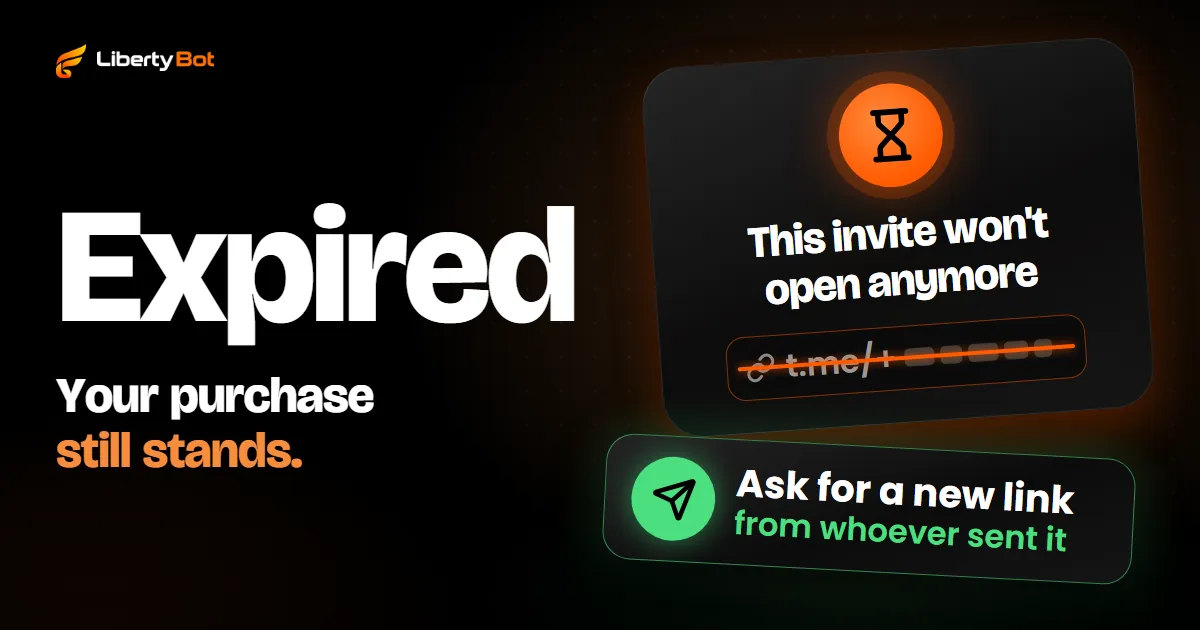
If the buyer says the invite won't open, the guide Telegram invite link expired shows what to do on both sides.
The bot removes the account that bought
The link can be passed on before its first use. At expiry, the bot removes the account that bought; whoever joined through the link in its place doesn't leave on their own. Check from time to time who joined through each link and remove by hand anyone who isn't in Access Control.
Frequently asked questions
Can someone removed from a group come back through the invite link?
If it was done in the app, in a supergroup or channel, no, until an admin takes them off the Removed users list. If it was done by a bot that bans and then unbans right away, yes, through a link that's still valid.
Can a regular member remove someone from the group?
No. Only the group owner and admins with the Ban Users permission.
Does canceling the invite link remove people who already joined?
No. Canceling (revoking) the link only stops new joins through it. To remove someone who's already in the group, you have to remove or ban them.
How do I remove members from a group automatically at expiry?
With a bot that's an admin of the group, has Ban Users turned on and stores each access's end date. On LibertyBot, this comes ready with the VIP Group/Channel delivery.
Sources (checked on )
- Telegram Bot API: banChatMember (opens in a new tab)
- Telegram Bot API: unbanChatMember (opens in a new tab)
- Telegram Bot API: administrator rights (opens in a new tab)
- Telegram Bot API: revokeChatInviteLink (opens in a new tab)
- Telegram API: revoked invite links (opens in a new tab)
- Telegram API: basic groups and supergroups (opens in a new tab)
- Telegram FAQ (admins and messages) (opens in a new tab)
- Telegram: channels FAQ (opens in a new tab)
- Telegram app text in English: Remove from group (opens in a new tab)
- Telegram app text in English: Remove from group (desktop menu) (opens in a new tab)
- Telegram app text in English: Remove from channel (opens in a new tab)
- Telegram app text in English: Removed users (opens in a new tab)
- Telegram app text in English: Removed Users under Permissions (iPhone) (opens in a new tab)
- Telegram app text in English: Permissions (opens in a new tab)
- Telegram app text in English: Edit (opens in a new tab)
- Telegram app text in English: Manage group (opens in a new tab)
- Telegram app text in English: Removed users (desktop) (opens in a new tab)
- Telegram app text in English: removed users list notice (opens in a new tab)
- Telegram app text in English: Administrators (opens in a new tab)
- Telegram app text in English: Ban Users (opens in a new tab)
- Telegram app text in English: Delete (opens in a new tab)
- Telegram app text in English: Ban user (opens in a new tab)
- Telegram app text in English: Invite Users via Link (opens in a new tab)