GuidePublished 10 min read
How to create a Telegram bot on your phone and get the token
Create the bot in BotFather in a few minutes, keep the token like a password and make the bot an admin of your group or channel with the right permissions.
 By LibertyBot TeamLibertyBot Blog
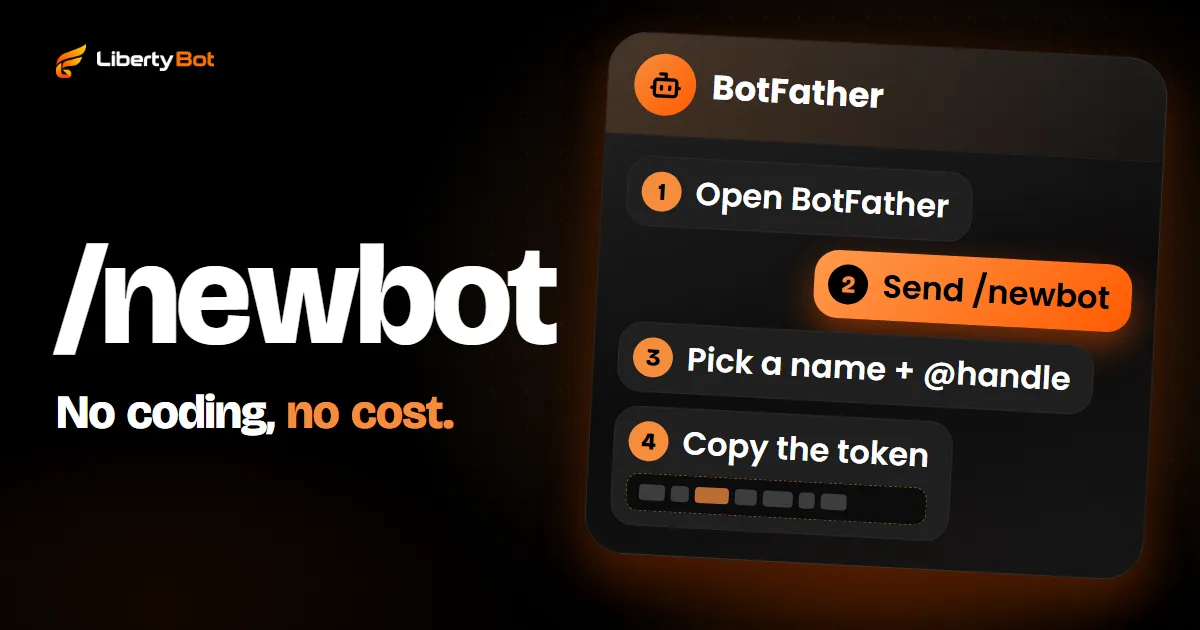
To create a Telegram bot, open @BotFather, send /newbot and choose a name and a username that ends in “bot”. BotFather replies right away with the token, the code that gives control of the bot. You don't need to code or use a computer, and creating the bot costs nothing.
If the bot is going to sell access to a group or channel, there's one more step: making the bot an admin, with the Ban Users and Invite Users via Link permissions. Without them, it can't create the buyer's invite or remove anyone whose plan expired. The sale itself is covered in the Telegram VIP group guide.
How to create a Telegram bot with BotFather, step by step
BotFather is Telegram's own bot for creating and editing bots. Everything happens in a chat with it, in the phone app or on a computer.
Open BotFather
In Telegram, tap the magnifying glass and search for @BotFather. Check that the handle is exactly @BotFather. Open the chat and tap Start.
Send /newbot
Type /newbot and send it. BotFather first asks for the name, then for the username.
Choose the name
It's the name shown at the top of the chat and in contacts, such as “Ana's Support”. It can have spaces and accented letters, and you can change it later.
Choose the username
It's the bot's @handle, used in search and in the t.me link. It has to end in “bot” (like anas_shop_bot or AnasShopBot), be 5 to 32 characters long and use only Latin letters without accents, numbers and underscores. Upper and lower case count the same. If the handle is taken, pick another one.
Copy the token
BotFather replies with the bot's link and the token, a string of numbers, a colon and a mix of letters and numbers, like 110201543:AAHdqTcvCH1vGWJxfSeofSAs0K5PALDsaw (the example from Telegram's documentation). Copy the token.
Prefer screens with buttons? BotFather also has a mini app with the same features (opens in a new tab).
The bot's @handle can't be changed later
You can change the name whenever you want; the username, no. Pick a handle that will serve your brand for a long time. Don't use “Telegram” in the name or the handle: Telegram's terms for bots prohibit using its brand.
How to keep the token safe and what to do if it leaks
The token is the bot's password. Whoever has the token has full control of the bot: they get whatever is sent to it, reply in its place and can plug it into another system. Telegram's terms for developers prohibit making the token public and say that whatever someone does with it counts as done by the bot's owner.
- Never post the token in a group, story, video, screenshot or comment.
- Paste the token only into the dashboard of the tool that will use the bot. Nobody from support needs it by message.
- Keep a copy in a password manager, never as a screenshot in your gallery.
How to get the token of a bot you already created
The token doesn't disappear after it's created. In BotFather, send /mybots, pick the bot and tap API Token: the current token shows up for you to copy. Only change the token if it leaked, because changing it breaks the bot everywhere the old one is used.
If the token leaked
Change the token right away. In BotFather, send /mybots, pick the bot, tap API Token and use the option to revoke the current token: BotFather shows the new one. Telegram's documentation also points to the /token command to generate a new token when the current one leaked or was lost.
Check the result: the part after the colon has to be different from the old one. If the token comes back the same, the change didn't happen.
The old token stops working immediately. Right after changing it, paste the new token everywhere the old one was used, or the bot goes silent. On LibertyBot, the bot's card shows Update token when the old token stops working, and that's where you paste the new one (see where the token goes in LibertyBot).
The bot's photo, description and commands
The photo and the description are what people see before tapping Start. Set both up in BotFather itself: for each command, it asks which bot to edit.
| Command | What it changes | Where it shows |
|---|---|---|
| /setname | The bot's name | At the top of the chat and in contacts |
| /setdescription | Text of up to 512 characters | In the “What can this bot do?” box, while the chat is still empty |
| /setabouttext | Text of up to 120 characters | On the bot's profile and next to the link when someone shares the bot |
| /setuserpic | The bot's photo | On the profile and in the chat list |
| /setcommands | The list of commands | In the menu that opens when the person types / |
| /mybots | Everything above, with buttons | - |
In the description, say in one sentence what the bot delivers, such as “Pick your plan here and get the group invite”. For the photo, use a square image that's recognizable even when small.
How to add the bot to a group as an admin
A bot that sells access does two things in the group: it creates the buyer's invite and removes anyone whose plan expired. For Telegram, both require the bot to be an admin with the right permission. As a regular member, it can't do either. How to remove someone, by hand or at expiry, is in how to remove someone from a Telegram group.
Using LibertyBot?
Connect the token to LibertyBot before making the bot an admin, in the group and in the channel. LibertyBot learns about the group from the update Telegram sends the moment the bot becomes an admin. The path is in where the token goes in LibertyBot.
Open the group info
Go into the group and tap the group's name or photo at the top of the screen.
Go to Administrators
On Android, tap the pencil in the top corner and then Administrators. On iPhone, open the group settings and tap Administrators.
Add the bot as an admin
Tap Add Admin (in some versions of the app, Add Administrator) and search for the bot's @handle.
Turn on the two permissions
Leave at least Ban Users and Invite Users via Link turned on. The exact name varies a little between Android, iPhone and desktop. Save.
The most common mistake: the bot as a regular member
Adding the bot with the add members button isn't enough. It joins, shows up in the list and can't create invites or remove anyone. If the bot is already in the group as a member, promote it: in Administrators, tap Add Admin and choose the same bot.
Telegram won't let you add the bot to the group?
Send /setjoingroups to BotFather, pick the bot and turn on joining groups.
How to add the bot to a channel as an admin
In a channel the path is similar: tap the channel's name at the top, then edit and Administrators. Tap Add Admin (in some versions of the app, Add Administrator) and search for the bot's @handle. In a channel, add the bot directly as an admin, never as a subscriber.
The channel's permission list is different. Leave the permission to invite people turned on (on iPhone, Add Subscribers; on Android, Add Users or Invite Users via Link): without it, the bot can't create invite links. Also leave Ban Users on: that's how the bot removes people whose plan expired. To sell access, the bot doesn't need to post in the channel. The rest of the channel setup is in how to create a paid channel on Telegram.
For developers
In the Bot API, the rights are can_invite_users and can_restrict_members. Without them, createChatInviteLink and banChatMember fail.
Where the token goes in LibertyBot
LibertyBot doesn't create the bot for you: you create it in BotFather, as above, and connect it with the token. In the dashboard, the path is:
Open My Bots
On your phone, tap Bots in the bottom bar; on a computer, open My Bots in the menu. Tap Connect Bot: the Create New Bot screen opens.
Paste the token
Paste it into the Bot Token field. LibertyBot checks the token with Telegram and fills in the bot's name and @handle on its own.
Choose the flow
The Flow field is optional: you can choose it later.
Tap Create Bot
The bot shows up as a card in My Bots.
The token is stored encrypted and doesn't show on screen again once saved. Have several bots? On the Several bots tab, paste one token per line and create them all at once. When you connect, LibertyBot replaces the bot's command list with /start, /suporte (support) and /status. The list you built with /setcommands in BotFather goes away, so you don't need to set up commands there.
Once the bot is connected, the card's edit button (the pencil) changes the photo, name, description, short description and the text and order of the commands, and the change goes straight to Telegram. LibertyBot checks the bots every 5 minutes: if the token is revoked, the card turns red and shows Update token, where you paste the new token.
To deliver access, in the flow's plan choose VIP Group/Channel under How to deliver. The list only shows groups and channels where a bot in the flow is already an admin. LibertyBot learns this from the update Telegram sends the moment the bot becomes an admin. If you made the bot an admin before connecting the token and the group doesn't show up, remove the bot as admin, add it again and tap Refresh.
The bot sends one link per purchase, with an expiry date, and, by default, at expiry removes the person from the group without leaving them banned. The rest of the path is in the Telegram VIP group guide and the paid channel guide. What the Telegram sales bot does in each conversation is on the home page.
Frequently asked questions
Is creating a Telegram bot free?
Yes. Telegram says the bot platform is free for both users and developers. BotFather doesn't charge to create or edit a bot.
What is the bot token?
It's the bot's password: a string of numbers, a colon and a mix of letters and numbers that BotFather gives you when you create the bot. Every tool that will answer for the bot needs it, and whoever has the token controls the bot.
Can I change the bot's @handle later?
No. The name at the top of the chat changes with /setname, but the username ending in bot is permanent. If you got it wrong, create another bot with /newbot. The /deletebot command deletes the wrong bot and frees up its handle, and that can't be undone.
Can I use the same bot in two groups?
Yes. A bot can be an admin of several groups and channels, and in each one you turn the permissions on again. On LibertyBot, each plan chooses its own group or channel.
Can I connect the same bot to LibertyBot and another tool?
Not at the same time. Telegram delivers the bot's messages to a single address (the webhook), and the last tool to connect gets them. If that happens, the bot's card on LibertyBot shows Update token. Use one bot per tool.
Sources (checked on )
- Telegram: BotFather, username and token (opens in a new tab)
- Telegram: BotFather commands to edit the bot (opens in a new tab)
- Telegram: introduction to bots (opens in a new tab)
- Telegram: tutorial from BotFather to your first bot (opens in a new tab)
- Telegram Bot API: createChatInviteLink (opens in a new tab)
- Telegram Bot API: banChatMember (opens in a new tab)
- Telegram Bot API: administrator rights (opens in a new tab)
- Telegram Bot API: setWebhook (opens in a new tab)
- Telegram Bot API: updates the bot receives (Update) (opens in a new tab)
- Telegram Terms for bot developers (4.5, credentials, and 8.1, brand) (opens in a new tab)
- Telegram FAQ: how to assign administrators (opens in a new tab)
- Telegram app translations (button names in English) (opens in a new tab)