FeaturePublished 7 min read
How to do remarketing on Telegram
Remarketing on Telegram means talking again, through the bot, to people who already chatted with it: people who didn't buy, people who created a payment and stopped, people who already bought and might buy more. On LibertyBot, it lives in the Remarketing menu, with audience, message, offer and sending right away or on a schedule.
 By LibertyBot TeamLibertyBot Blog
Why remarketing only reaches people who talked to the bot
The rule is Telegram's: bots don't start conversations (opens in a new tab). The person has to message the bot first or add it to a group. In practice, your list is made of people who opened the bot and sent /start. You can't send to phone numbers or to a purchased list.
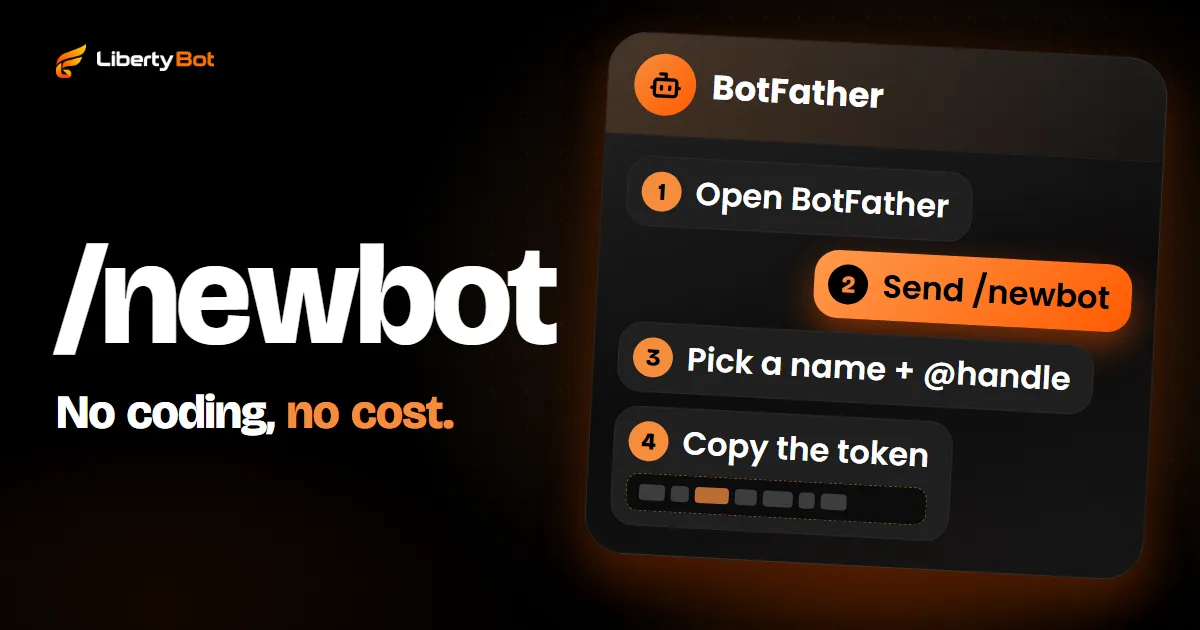
If you don't have a bot yet, start with how to create a Telegram bot.
People who blocked the bot don't get it
When someone blocks the bot, LibertyBot marks that contact and doesn't try again through that bot, in any campaign. In Campaign statistics, the Blocked the bot item shows how many blocked it.
How LibertyBot's Remarketing works
Remarketing has its own menu item, in every account. The screen is titled Remarketing, with the subtitle Campaign command center, and groups campaigns by flow. Each campaign's card shows the TOTAL of leads who entered the list, across all sends, plus the messages sent and the revenue.
Each campaign belongs to one flow. The message goes out through every bot in that flow, and each lead gets it from the bot they chatted with. Test conversations are left out.
The audiences and when to use each one
In the Audience step, Target Audience has four options that work today, all tied to the campaign's flow:
| Audience | Who's in it | When to use it |
|---|---|---|
| All Leads | Everyone who entered the flow in the period, plus people who turned on notifications in the flow's Virtual Bot, who get it in the browser | Announcements for everyone: a new product, new content, a plan change |
| Did Not Buy | People who never paid an order in this flow | A first offer, a preview, a deal for people still deciding |
| Already Bought | People with at least one paid order in this flow | Another product, a bigger plan, an extra pack |
| Payment created | People who created a charge and have no paid order in the flow | Reminding people who reached the payment and stopped |
Group Members shows up with the Coming soon badge and can't be selected yet.
Language, category and period
In Language and category, you narrow the campaign to one of the flow's languages and to some of its categories. If you pick nothing, it goes to everyone.
In Period, you choose All time, Today, Yesterday, 7 days, 30 days or Custom (from one date and time to another). The period counts the date the lead entered the flow, not the date of the charge. Estimated Reach shows how many leads the filter catches.
Two examples
- People who created a charge and didn't pay. Audience Payment created, period Yesterday: it includes leads who arrived yesterday, created the charge and didn't pay. A short message, reminding them what they were about to get, with the plan in the offer. When they tap the plan, the bot creates a new charge.
- People who already bought. Audience Already Bought, period 30 days: it includes leads who arrived in the last 30 days and have at least one paid order in the flow. Offer another product or a bigger plan.
How to create a remarketing campaign in the dashboard
A campaign is built in a five-step wizard. Each step only unlocks the next one when it's complete.
Open Remarketing
In the menu, tap Remarketing and then New Campaign.
Campaign and flow
Fill in the Campaign Name and choose the flow under Select Flow.
Audience
Choose the Target Audience, the language and categories if you want, and the Period.
Message
Under Media, attach a photo, video or audio file if you want. Write the Message: up to 4,096 characters, or up to 1,024 with media, which is Telegram's maximum caption length.
Offer and delivery
Optional. Under Payment Plans, choose the currencies (only the ones the flow already sells in show up) and use Create New Plan to give each plan a name, price, period and delivery. You can add a Remarketing Order Bump and a Redirect Button, for a link with no payment. With no plan and no Redirect, the campaign sends only the message.
Review and save
Tap Review campaign, check the summary and tap Create draft. Nothing goes out at that point: the campaign is saved with the Draft badge.
Send or schedule
On the card, Send now opens the send confirmation, and the calendar icon, Schedule campaign, opens the schedule.
Send now
The confirmation shows how many leads the audience has for this send; people who already blocked the bot are counted, but don't get it. At zero, the button stays off. The Do not repeat for the same person box, when checked, leaves out anyone who already got this campaign, even if they started on another bot. It comes unchecked and applies only to that send.
After any send, the same campaign can only be sent by hand again 3 hours later. The schedule doesn't wait: it follows the chosen frequency.
Schedule
In Schedule Campaign, the Frequency can be Once (at a time today), Daily, Custom times, Days of the week or Every X hours (from 1 to 24). Below it, a sentence says what will happen, in Brasília time. With the schedule active, the card swaps Send now for Cancel schedule.
What the lead sees, and in which language
- With a single currency, the plans come in the message. With more than one, the message shows the currencies, and tapping one swaps the buttons for its plans right there; the text and media stay.
- Each currency charges its own way. A plan in Telegram Stars charges in Stars. In other currencies, the campaign charges by card, if your account has card payments set up. The one exception is the Brazilian real, which charges by PIX only (Brazil's instant payment). Crypto is left out.
- The texts the bot writes on its own (plan choice, the payment message, delivery) follow the language chosen in the audience. In a campaign for all languages, they follow each person's Telegram language.
- Your message goes out as you wrote it. To speak two languages, create one campaign for each.
How long sending takes
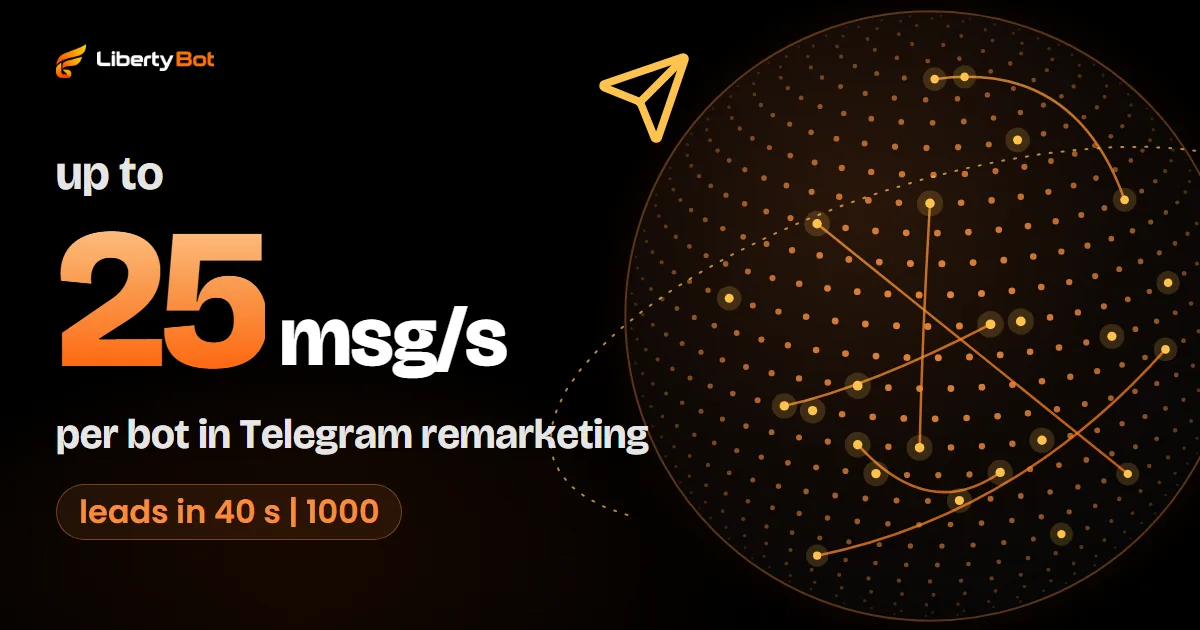
Telegram limits bulk sending. According to the Telegram Bots FAQ (opens in a new tab), a bot can't broadcast more than about 30 messages per second, and anyone who goes over gets error 429, which asks them to wait. LibertyBot sends at up to 25 messages per second per bot, below that ceiling. The math, for a single bot and in the best case:
| Leads | Seconds | Time |
|---|---|---|
| 1,000 | 40 | 40 seconds |
| 10,000 | 400 | 6 minutes and 40 seconds |
| 50,000 | 2,000 | 33 minutes and 20 seconds |
| 100,000 | 4,000 | 1 hour, 6 minutes and 40 seconds |
In practice, it can take longer: the system splits capacity among all the sends going out at the same time, and when Telegram asks to wait, the bot stops for the time requested and comes back slower.
While the send is going out, the card shows Sending now and a bar with how many have gone, for example 4,000 of 10,000. You can't edit at that point: wait for it to finish or pause. On a schedule, if the previous send hasn't finished, the next slot is skipped and the card tells you. With 100,000 leads on one bot, an hourly schedule will skip slots.
Care before you send
- A sent message doesn't come back. Reread it before Send now. Editing the campaign applies from the next send onwards.
- Pause if you need to. The Pause campaign button holds back, within seconds, whatever hasn't gone out yet.
- Frequency. Sending the same offer to everyone several times a day is the shortest road to getting the bot blocked.
- Spam. The Telegram Terms for bot developers (opens in a new tab) prohibit bothering users or sending spam with unsolicited messages. The Telegram spam FAQ (opens in a new tab), written for personal accounts, gives the rule of thumb: only write to people who expect your message.
- Smaller audience first. Start with Payment created before sending to All Leads.
How to track results
The Campaign statistics icon shows the funnel (On the list, Sent, Clicks and Conversions), the revenue from orders that came from the campaign, each currency on its own, and what didn't turn into a send. There's no open rate: among the updates the bot gets from Telegram (opens in a new tab), none says the person read the message.
Want to do remarketing through your bot?
Joining the platform is by invitation: the button below puts you on the waiting list.
Free account. 5% per card sale, R$0.50 per crypto or Stars sale.
Frequently asked questions
Can I send faster than 25 messages per second?
No. Telegram has paid broadcasting, charged in Stars, to go over the ceiling of about 30 per second, and LibertyBot doesn't use it.
Can I send the same campaign again?
Yes. With Send now, only 3 hours after the campaign's last send. With a schedule, the frequency you choose applies.
Sources (checked on )
- Telegram: how bots work and why they don't start conversations (opens in a new tab)
- Telegram Bots FAQ: sending limits and broadcasts (opens in a new tab)
- Telegram Bot API: text and caption length (sendMessage and sendPhoto) (opens in a new tab)
- Telegram Bot API: the Update object, what the bot finds out (opens in a new tab)
- Telegram Terms for bot developers (item 5.2) (opens in a new tab)
- Telegram spam FAQ (opens in a new tab)